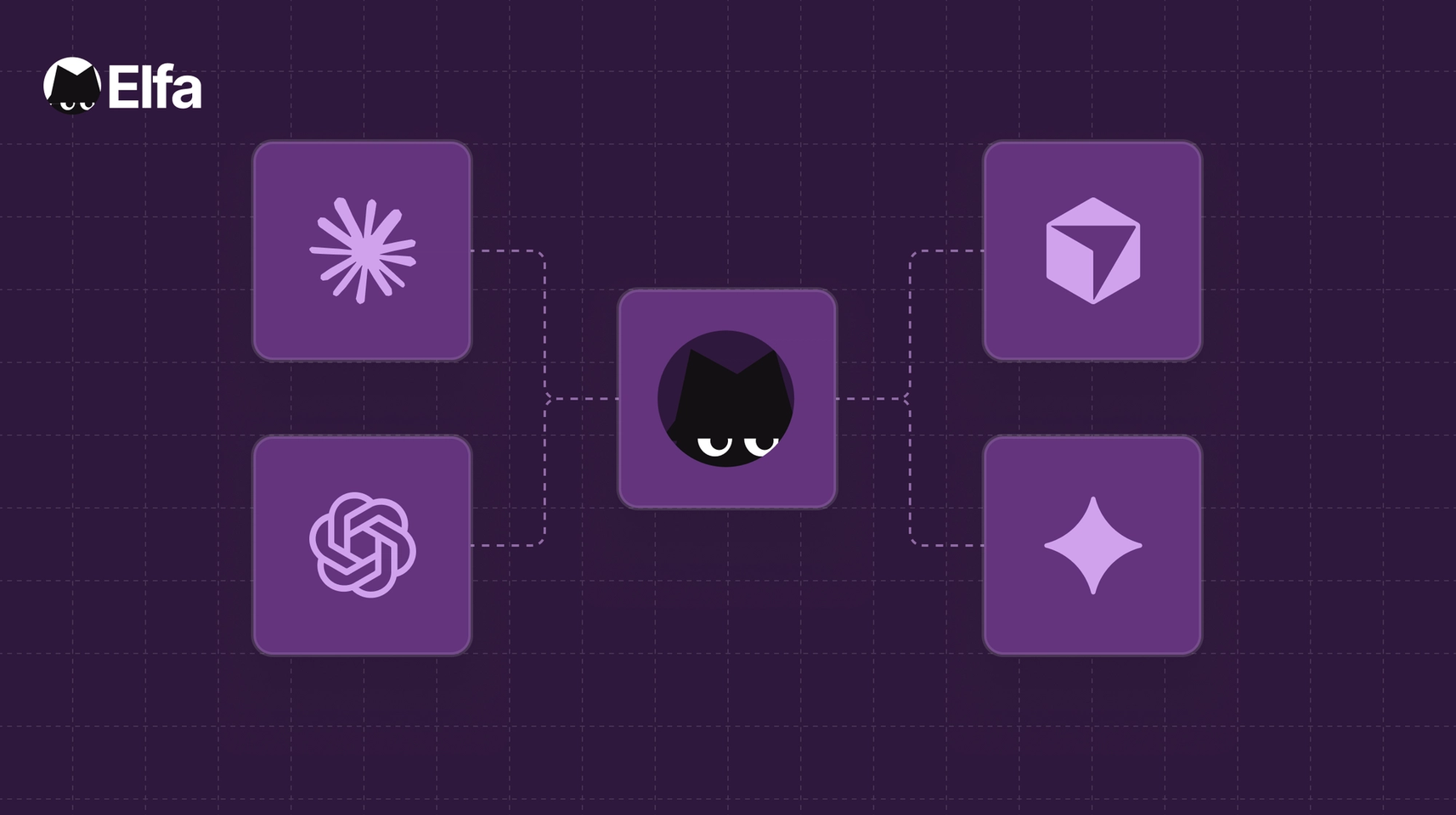
This is a step-by-step tutorial for connecting Elfa MCP to your AI assistant. While Elfa MCP works with many other apps, this guide specifically covers the setup process for Claude and ChatGPT. Once connected, apps like Claude, ChatGPT, Gemini, Codex, Claude Code and Cursor can pull real-time market intel from Elfa straight into your chat. No coding needed, and setup takes under a minute.
Prerequisites
- A Claude/ChatGPT account: On the Claude/ChatGPT desktop app (or claude.ai and chatgpt.com).
- An Elfa account: On dev.elfa.ai. You'll sign in with Google or email when you connect.
- Note: An API-key login on dev.elfa.ai cannot approve an app. Use one of the sign-in methods above.
Why Elfa MCP?
Claude is powerful, but on its own it doesn't know what the market is talking about right now. Elfa MCP plugs 21 Elfa tools directly into Claude, so it can:
- Track mentions of any ticker, keyword or account across X and Telegram
- Spot trending tickers and contract addresses gaining attention
- Break down the narratives driving the market, with source links
- Pull upcoming crypto, equity and macro events from the calendar
- Build and manage Auto alerts for you, straight from chat
TL;DR: Without Elfa, Claude is guessing. With Elfa, it has the intel.
How to Connect Elfa MCP to Claude
Step 1: Open Connectors in Claude
- Open Claude and go to Settings.
- In the sidebar under 'Customize', click Connectors.

Step 2: Add a Custom Connector
- Click + Add at the top right of the Connectors page.
- Select Add custom connector.

Step 3: Enter the Elfa MCP Details
- In the Name field, enter: Elfa MCP
- In the MCP server URL field, enter: https://mcp.elfa.ai/mcp
- Click Continue.

Claude will now check the server. Give it a few seconds to finish connecting and looking up the sign-in settings.

Step 4: Confirm the Authentication Settings
Claude detects the right settings for Elfa automatically, so there's nothing to change here. You should see:
- Authentication: 'Sign in now' (Detected)
- OAuth client: 'Use Claude's published identity' (Detected)
You don't need to add any request headers. Scroll down and click Add.

Step 5: Connect and Sign In
- You'll land on the Elfa MCP page with the message 'You're not connected to Elfa MCP yet.' Click Connect.
- A sign-in window opens. Log in to your Elfa account with Google, email or a wallet.
- Approve Claude's access.


Each app you approve gets its own API key, billed to your Elfa account.
Step 6: Start Asking
Open a new chat and ask Claude about the market. Here are a few prompts to get you started:
Simple
- What tickers are trending on crypto Twitter right now?
- Show me the latest mentions of $SOL.
Intermediate
- What narratives are driving the crypto market today? Include sources.
- What crypto, equity and macro events are coming up this week?
Advanced
- Set up an Auto alert for when a top account mentions a new token launch. Show me the cost before you create it.
Tip: ask Claude "What's my Elfa API status?" to check your plan and remaining credits. This check is free.
You are all set!
How to Connect Elfa MCP to ChatGPT
Step 1: Open Plugins in the ChatGPT Desktop app
Open the Plugins section in ChatGPT. Click the Add button on the top right corner, and then select Add Custom MCP Server.


Step 2: Add Elfa as a Custom MCP Server
- In the Name field, enter: Elfa MCP
- In the Server URL field, enter: https://mcp.elfa.ai/mcp
- For authentication, leave the option selected as OAuth.
- Review the warning, select I understand and want to continue, then click Create as a plugin.
- Once this step is completed, a button will appear, directing you to the dev.elfa.ai to login.


Step 3: Sign In and Approve
- Sign into dev.elfa.ai using your preferred method.
- Click Allow to approve ChatGPT's access.

Step 4: Install the Plugin
- Return to your ChatGPT Desktop app and toggle to the Personal tab on the Plugins page.
- Click the + button next to Elfa MCP to add the plugin.

Step 5: Start Asking
Call on the Elfa MCP using @Elfa in the ChatGPT interface.
Always type @ and select Elfa so ChatGPT knows to use it.

Using Elfa MCP With Other Apps
Elfa MCP works with any app that supports MCP, including Gemini, Codex, Claude Code and Cursor. The setup works more or less the same way everywhere:
- Find the option to add a custom or remote MCP server in your app's settings.
- Enter the server URL: https://mcp.elfa.ai/mcp
- Sign in to Elfa in your browser and click Allow.
- Start asking.
For example, in Codex you run codex mcp add elfa --url https://mcp.elfa.ai/mcp, then codex mcp login elfa to sign in.
Some apps, like Cursor and VS Code, do not use the browser sign-in. For those, run the local server instead with npx -y @elfa-ai/mcp and set ELFA_API_KEY to your API key from dev.elfa.ai. The local server has the same tools and bills the same credits.
For app-specific setup guides, check out our docs.
Frequently Asked Questions (FAQ)
Q: How do I check that Elfa is connected?
Ask your AI to run Elfa's api_status tool. It's free and shows your plan and remaining requests. Make sure the reply shows an Elfa tool call. An answer without one doesn't confirm the connection is working.
Q: Elfa doesn't show up when I type @ in ChatGPT. What should I do?
Install the plugin from your personal plugins (Step 4 above), and make sure you're in Work mode rather than Chat.
Q: Does using Elfa MCP cost credits?
Most tools use Elfa credits, and some are free, like checking your API status. If you ask for a tool your plan doesn't include, you'll get a notice to upgrade and won't be charged.
Q: Can Elfa MCP stream live alerts into my chat?
Not directly. Streams aren't available over MCP, but your AI can check on your Auto alerts and their runs whenever you ask.
Q: How do I disconnect an app or manage access?
On dev.elfa.ai, go to settings → General → Connected apps. A sign-in also expires after 30 days without use, and after 180 days at most. After that, just sign in again.
Need Help?
For the full list of tools and credit costs, see the Elfa MCP docs.
Still stuck? Reach out via our community and the team will assist you.